 Add to Chrome
Grrab Documentation
See how Grrab works — from the shortcut to the AI upscaling behind it.
On this page
Getting started
Under the hood
Getting started
What is Grrab
Grrab is a Chrome extension that grabs any image on the web in one shortcut.
Hover any image, press Cmd+C, and Grrab copies it to your clipboard — AI-upscaled to the resolution you can actually use, and saved to your collection in the background.
Install and start clipping in 30 seconds
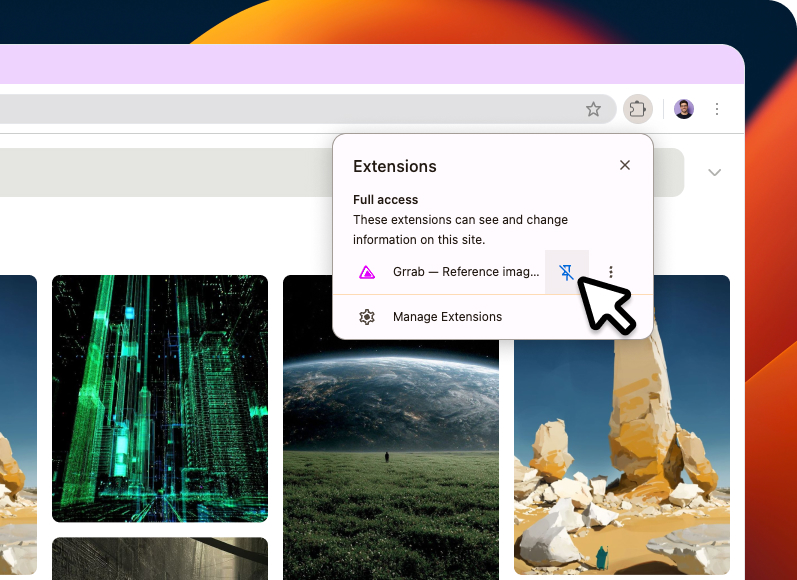
- Add Grrab from the Chrome Web Store, then pin the Grrab icon to your toolbar.
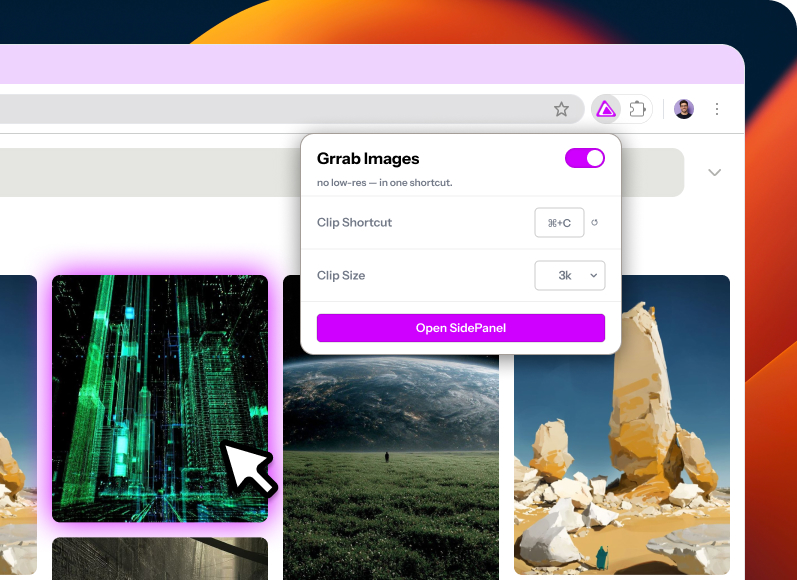
- Click the Grrab icon to open the popup — check that Grrab is on, and adjust your shortcut or clip size if you’d like.
- Hover any image on any page and press Cmd+C (Ctrl+C on Windows/Linux). Paste anywhere — Figma, a doc, an email. That’s your first clip.
Clipping to the clipboard works right away.
To save clips to a collection, sign in with Google — covered in Your clip history and the side panel.
How Grrab works
The clip shortcut
Hover any image on any page. Grrab highlights it and shows a "Press ⌘C to clip" tooltip.
Press the shortcut — Cmd+C on Mac, Ctrl+C on Windows and Linux. Grrab copies that exact image to your clipboard.
Grrab also works on video frames. Hover a playing video and press the shortcut to capture the current frame as an image.
To change the shortcut key: click the Grrab icon, then click the field under “Clip Shortcut” and press the key combination you want to use.
AI upscaling on your device
Reference images on the web are often too small to use. Grrab fixes this at the moment you clip.
Click the Grrab icon and pick your Clip Size — Original, 512, 1024, or 1600. Every image you clip arrives at that resolution, no matter what size the source was.
Larger images are resized down. Smaller images are enlarged with an on-device AI super-resolution model — the kind of model that reconstructs detail, not just interpolates pixels.
Nothing is uploaded. The model runs on your machine. See Privacy and data for more.
Your clip history and the side panel
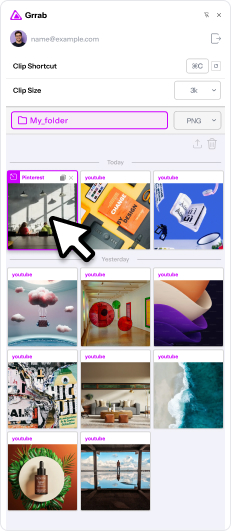
The side panel is where your clip history lives. Open it by clicking “Open SidePanel” in the Grrab popup.
Sign in with Google, and every clip is saved to your history — accessible from any device you sign in on, and kept until you delete it.
Without signing in, Grrab copies to your clipboard but doesn’t save history.
From any card in the side panel, you can:
- Re-copy the clip back to your clipboard
- Delete clips you no longer need
- Open the source page by clicking the source icon on the card
- Upload selected clips to your export destination — select one or more cards, then click Upload
Everything you clip stays organized, browsable, and yours.
Under the hood
Privacy and data
Grrab is designed to keep your data — and your workflow — your own.
AI upscaling runs entirely on your device: the model is bundled with the extension and executes in your browser, so no image is ever uploaded for upscaling.
When you clip without signing in, nothing about the image, the page, or you leaves your browser. Grrab sends one empty request that counts that a clip happened — no URL, no page, no image, no account or device identifier — so we can see overall usage. It can be turned off.
When you sign in, your clip history is stored on Grrab’s own backend under your account — never shared with third parties.
Grrab doesn’t use third-party analytics or trackers, doesn’t monitor your browsing history, and only acts on images you interact with. For the full breakdown, see the Privacy Policy.
Troubleshooting
Grrab is a small extension with a simple job, and most of the time it just works. If something isn’t behaving the way it should, or you have a question that isn’t covered here, we’d like to know.
Email us at tlstlsgns@gmail.com, or open an issue on GitHub.
Follow along
Grrab is a young project, and it’s going to grow. Other browsers, and desktop and mobile apps, and new ways to organize your references are on the way.
Star the repo on GitHub to follow updates, or drop your email to tlstlsgns@gmail.com and we’ll let you know when something new ships.